Master JAMB CBT Keyboard Shortcuts: How to Navigate the Exam Without a Mouse
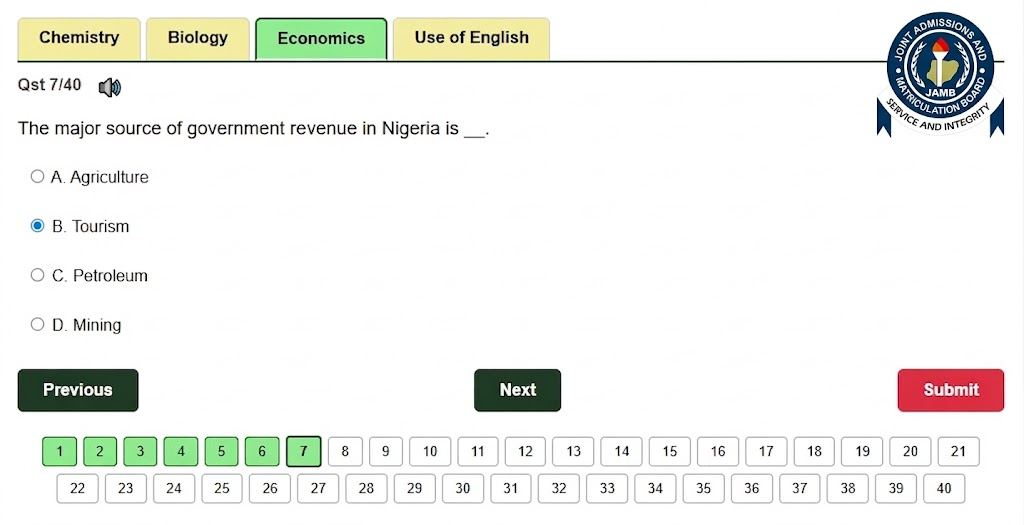
Preparing for the Joint Admissions and Matriculation Board (JAMB) Unified Tertiary Matriculation Examination (UTME) requires more than just subject knowledge; it requires technical speed. One of the most common fears students have is a malfunctioning mouse during the exam. If your mouse fails or becomes laggy, knowing the JAMB keyboard shortcuts can save your result.
In this guide, we will break down the essential keyboard commands used in the JAMB Computer Based Test (CBT) and show you how to practice them using the
Why You Should Learn JAMB Keyboard Shortcuts
During the UTME, every second counts. Moving your hand back and forth between the keyboard and mouse can slow you down. Furthermore, technical hitches like a frozen cursor can cause panic. By mastering these shortcuts, you can:
Increase Speed: Answer questions faster than those using a mouse.
Stay Calm: If your mouse stops working, you can finish the entire exam using only the keyboard.
Focus Better: Keep your eyes on the screen without looking down to find the cursor.
The Essential JAMB Shortcut Keys
The JAMB CBT interface is designed to be user-friendly. There are nine primary keys you need to memorize.
1. Navigation Keys
N – Next: Pressing the 'N' key moves you to the next question. You don’t need to click the "Next" button on the screen.
P – Previous: If you want to go back and review a question you just answered, press the 'P' key.
2. Selecting Options
Instead of clicking the radio buttons for options A, B, C, or D, you can simply use the corresponding letters on your keyboard:
A: Selects Option A
B: Selects Option B
C: Selects Option C
D: Selects Option D
3. Final Commands
S – Submit: When you are completely finished with all four subjects and ready to end the exam, press 'S'. A confirmation dialogue will usually appear to ensure you didn’t press it by mistake.
R – Reverse/Return: In some versions of the software, 'R' is used to go back to the exam if you accidentally hit the submit button (before final confirmation).
How to Practice These Shortcuts
Knowing the keys is one thing; having the muscle memory to use them is another. You should practice these shortcuts in a real exam environment before the big day.
You can practice these exact shortcuts right now on My360Tutor. The platform is designed to mirror the actual JAMB interface, allowing you to get used to the "N", "P", and "S" keys.
Follow these steps to practice:
Visit the
My360Tutor Subject Selection Page Select your four JAMB subject combinations.
Once the exam starts, try to keep your hand off the mouse.
Use A, B, C, D to pick answers, N for next, and P for previous.
Expert Tips for JAMB Success
Check Your Keyboard: As soon as you sit down at the CBT center, gently tap the keys to make sure they aren't stuck.
Don't Rush the 'S' Key: Only press 'S' when you are 100% sure you are done. Once you confirm your submission, there is no going back.
Simulate the Pressure: When practicing on
My360Tutor
By mastering these keyboard shortcuts, you are giving yourself a competitive edge. Don't let a faulty mouse stand between you and a 300+ score. Start practicing today!
💬 Discussion
Only registered members can comment.
Click here to Login